-
 play_arrow
Retro Hit Radio Rocks The Block
-
 play_arrow
Retro Now New Music Retro Crew
How To Listen

A million ways to listen!
We’re an internet radio station which means we can be heard wherever you are, without the need of a radio.
We want to make sure you have THE MOST IMPORTANT info on how to listen.
You can listen in a number of ways, so pick your pleasure
Browser
Edge, Chrome, Firefox
Option 1 – Our Player (yes, you’re already here)
On a computer or mobile browser, go directly to our full screen player: hitradio.nz/retro
Otherwise head to our website: http://retrohitradio.co.nz and look for the player bar at the bottom of the screen, or at the top of our website, use our full screen player from the Listen Live link.
Option 2 – Aggregator Websites
There are dozens of 3rd party aggregate websites, so couldn’t recommend one over the other. However you might like the flavour of a few listed below.
These are provided as a courtesy, just be mindful whatever happens on other peoples websites is not controlled by us.
| myTuner | Radio Garden* |
| TuneIn* | Online Radio Box |
| Get Me Radio *** |
Our iOS and Android apps
Grab our official apps from the links below.

iOS is coming soon…
3rd party aggregator apps
Android, iPhone
We are available on select third party apps and we have tested the following with success. Once installed, search for “Retro Hit Radio” and add us to your favourites if the app has that function.
These are provided as a courtesy, just be mindful whatever happens on other peoples apps is not controlled by us.
| myTuner Android | iOS | Radio Garden* Android | iOS |
| TuneIn* Android | iOS | Online Radio Box Android | iOS |
| Apple Music** Android | iOS |
Smart Speakers
Amazon, Google, Apple
Using Alexa, Google Assistant and Siri**, simply ask to “play Retro Hit Radio”. You may need to say this SLOWLY!
OK Google, play Retro Hit Radio
Alexa
Hey Alexa, play Retro Hit Radio
Siri
Hey Siri, play Retro Hit Radio eighty eight point one
Troubleshoot Siri here
 Sonos
Sonos
We are listed in the Sonos Radio music service.
In the Sonos app, search for Retro Hit Radio. Tap on our listing to start playing!
Tip: On the player screen in the app, tap the 3 dots and ‘Add Station to My Sonos’. We will then be listed on the main screen of the app under ‘Recently Played’ and under ‘Stations’. Woop woop!
Smart TV
Apple TV, Roku, Google TV, Amazon Fire TV
We do not have our own official TV app, however we have tested the following TV apps with success. Once installed, search for “Retro Hit Radio” and add us to your favourites if the app has that function.
Other smart TV’s like Samsung, LG, Sony, TCL, Hisense etc, may also have their own system for listening to internet radio using built in apps.
These are provided as a courtesy, just be mindful whatever happens on other peoples apps is not controlled by us, and may not be available at all.
- myTuner
- TuneIn*
A note on using the Apple TV remote with Siri. We are integrated with Apple Music so Siri is designed to work with your Apple TV. However it may not work first time.
If you use the same Apple ID on your iPhone or iPad then you may need to use the Apple Music app and listen there first, which will teach Siri to learn about us. This should then let Siri match to us using your Apple TV remote, in which case you just need to tap the microphone button and say “play Retro Hit Radio”.
If it matches, then it will play through the Apple Music app. No promises tho!
Troubleshoot Siri here
Internet Radio
Buying a new standalone radio, or hi-fi tuner may also have an “Internet Radio” option as a source when your radio is connected to a WiFi network.
Internet Radio is a directory of radio stations from around the world, including us!
You might find the navigation on these devices a little cumbersome so if there is a search function, try that by typing in “Retro Hit Radio”. Otherwise try browsing ‘By Country’ then hopefully you will find us in the New Zealand / Auckland listings.
Remember to add us to your favourites if this function is available.
More ways to ROCK THE BLOCK
So you’re streaming? Great. Share it around.
You might have heard of Bluetooth, Casting and AirPlay. This means you can send audio from one device to another (hopefully bigger and louder!).
Google Cast
If you have a device on your WiFi network that you can “cast” to such as a Chromecast dongle, or other devices that have Chromecast built-in like a Google Smart Speaker, or Smart TV. Anything that says it is cast-enabled will be able to play our stream.
Look for the cast icon, found in mobile apps and browsers to send the audio to your favourite device.
Hot tip: Make sure you are on the same WiFi network as the device you are casting to. It’s one of the most common FAQ’s we receive.
Bluetooth
Bluetooth is widely used, often the most used option with mobile phones to send audio to a soundbar, or bluetooth device like a portable speaker in the shower, or even bluetooth earbuds. It can be used anywhere, and doesn’t need WiFi.
A good friend has a classic Kenwood system he bought in the ’70s and can send our stream from his phone to a bluetooth receiver, which then plugs into the AUX input on his amplifier.
We’re told it works well, and we sound incredible! What a way to bring a classic back to life. Here’s a handy guide.
AirPlay
Familiar to Apple users, AirPlay works in a similar way to Google Cast. You can send whatever is playing on your Apple device, to another (Apple) device.
For instance, a Mac user can send our stream to an Apple Homepod, or, an iPhone user can send to an Apple TV. Super easy. Just look for the AirPlay icon.
Retro Hit Radio is licensed with OneMusic for music broadcasting rights. Info [PDF]
Similar posts

Now on air
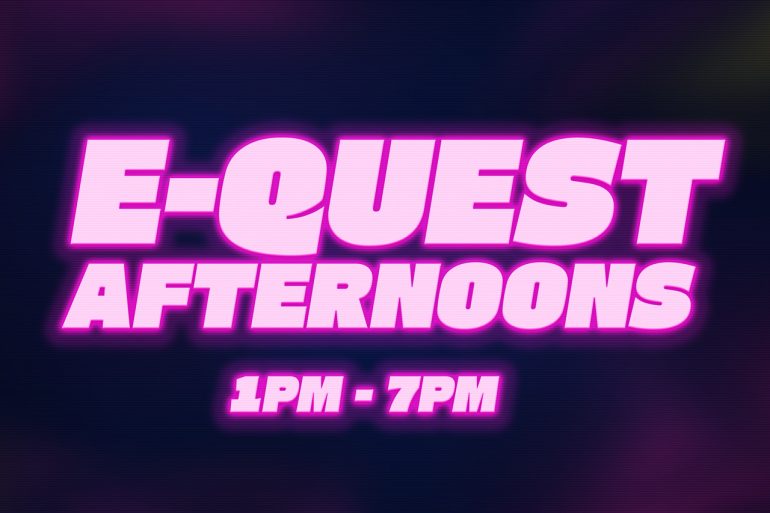
eQuest Afternoons
Working hard or hardly working?
If you have a song you're BURNING to hear - let us know.
closeUpcoming shows
 Retro Music News
- Baz Luhrmann: ‘There’s the image of Elvis and then there’s the man’ March 1, 2026
- Phil Collins, Wu-Tang Clan, Sade, and Oasis Nominated for Rock Hall February 25, 2026
- Metallica Confirm Life Burns Faster Residency at Sphere February 25, 2026
- 'Mrs. Doubtfire' Musical To Debut In Melbourne February 23, 2026
- Mental As Anything Announce 50th Anniversary Tour February 23, 2026
- Amy Grant on Making Her First New Album in 13 Years, ‘The Me That Remains,’ After Asking: ‘Am I Doing People a Disservice in My Sixties, Singing Songs From the Perspective of a 30-Year-Old?’ (EXCLUSIVE) February 21, 2026
- Dave Grohl admits Foo Fighters "continuing after Taylor Hawkins was really complicated" and breaks silence on Josh Freese exit February 20, 2026
- No Steve Perry for final Journey tour (as if he would) February 20, 2026
- Bono opens up about U2's new 'Days Of Ash’ EP February 20, 2026
- EPiC: Elvis Presley In Concert – a purely heroic presentation February 20, 2026
Latest news